
Most developers are paying $20 to $200 a month for AI subscriptions they could replace with a one-time hardware investment. Learning to run AI models locally is not as complicated as it sounds, and for a lot of common workflows, a local setup is actually faster and more private than hitting a remote API.
Here is what you need to know to make it work.
Why Cloud Subscriptions Are Not the Only Option
GitHub Copilot, ChatGPT Plus, Claude Pro. If you are using more than two of these, you are probably spending $60 to $100 a month on cloud AI subscriptions. That adds up. And every prompt you send to those services leaves your machine.
For solo developers or small teams working on proprietary code, privacy and data ownership are real concerns. Most SaaS AI providers explicitly say they may use your prompts for model improvement unless you opt out (or pay more to opt out). Running inference on your own hardware means your code never leaves your computer. That matters if you work in healthcare, finance, or any regulated industry.
There is also the offline angle. If you travel, work from spotty hotel WiFi, or just hate depending on a third-party service staying up, offline AI inference is genuinely useful. A model running on your laptop works on a plane.
Understanding the Hardware Requirements Before You Download Anything
This is the section most tutorials skip, and it is why people get frustrated. You download a 70-billion parameter model, try to load it, and your computer hangs for three minutes before producing garbage output.
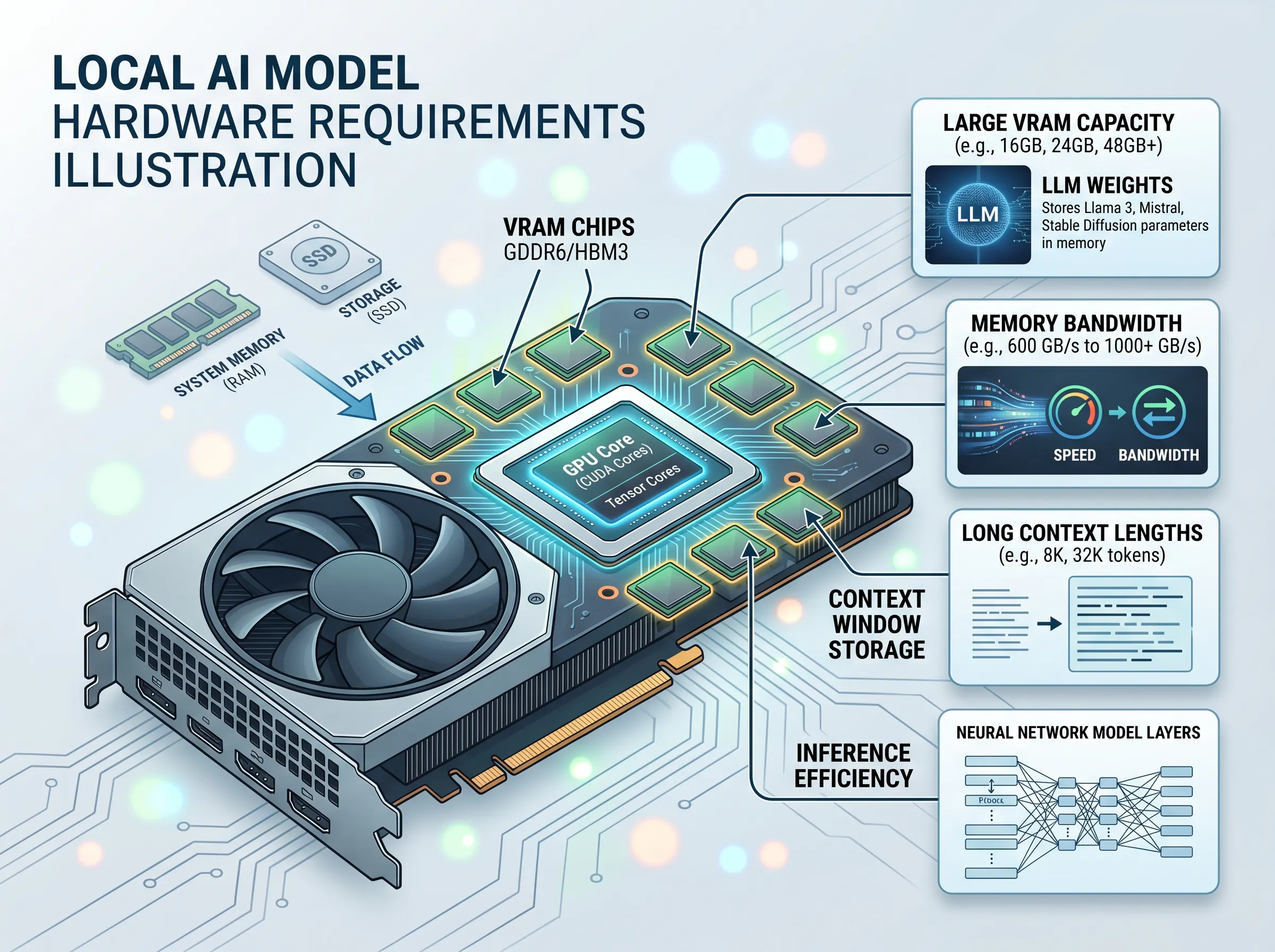
The core constraint is GPU memory, or VRAM. When a model runs, its weights need to fit into memory where your GPU can access them. A 7B model in full 16-bit precision takes roughly 14GB of VRAM. A 13B model needs about 26GB. Most consumer GPUs top out at 8GB to 16GB.
This is where quantization becomes the practical solution. Quantization shrinks the numerical precision of a model's weights, which reduces memory usage at the cost of a small quality drop. A 7B model in Q4 format (4-bit quantization) fits in about 4GB of VRAM, which puts it within reach of cards like the RTX 3060 or even integrated graphics with shared system RAM. Model quantization formats vary, but the ones you will see most are GGUF files (used by Ollama and LM Studio) with suffixes like Q4_K_M, Q5_K_M, or Q8_0. Higher numbers mean higher quality and larger file sizes.
If you do not have a dedicated GPU, you can still run models, but they will use CPU inference with system RAM instead. Expect responses that are 5 to 10 times slower. A Q4 7B model on a modern laptop CPU with 16GB RAM is usable for single-turn queries; it is painful for anything requiring long back-and-forth.
One other thing to know about context window size: it is not free. Each additional token in a model's context requires additional memory at inference time. Loading a model with a 128K context window at full context usage is significantly more expensive than the same model at 4K context. If you are memory-constrained, set your context limit lower in your runtime config.
Mixture of Experts Models Are a Different Tradeoff
Mixture of experts (MoE) models like Mixtral 8x7B work differently from dense models. Instead of activating all parameters for every token, they route each token through a subset of "expert" sub-networks. The practical result is that a 47B-parameter MoE model might only activate 12B parameters per token, so it needs less VRAM per inference pass than its total size suggests. But you still need to load all the weights into memory (or at least into RAM), so total storage and RAM usage is still high. MoE models are interesting if you have 32GB of system RAM and a fast NVMe drive, but they are not a magic solution for an 8GB GPU.
For most people getting started, a Q4 or Q5 quantized 7B model fits on a mid-range GPU and gives you solid results. A Q4 13B model on 12GB or 16GB of VRAM is a noticeable step up. The running AI locally hardware requirements guide most people actually need is simple: 8GB GPU minimum for useful work, 12GB to 16GB for comfortable work, 24GB or more for running 34B+ models without compromise.
How to Run AI Models Locally: The Tools That Actually Work
Two tools dominate this space right now, and they serve slightly different audiences.
Ollama is a command-line-first runtime for macOS, Linux, and Windows. You install it, run ollama pull llama3 (or whatever model you want), and you have a local OpenAI-compatible API endpoint at localhost:11434. It is minimal, fast to set up, and integrates cleanly with code. If you are a developer who is comfortable in a terminal, Ollama is probably where you should start.
LM Studio is a desktop GUI application that wraps the same underlying inference engine (llama.cpp) in a polished interface. You can browse models, download them, and manage your server from a window that does not require any terminal knowledge. For people who want to understand how to set up local AI with LM Studio and Ollama separately and then compare them, LM Studio wins on usability and Ollama wins on scriptability.
Both support GGUF models, which means you can grab anything from Hugging Face that uses that format. Hugging Face is effectively the model repository everyone uses. Search for "GGUF" on the platform and you will find quantized versions of nearly every major open-weight model: Llama 3, Mistral, Qwen, Gemma, Phi, and more. The open-source ecosystem here is genuinely large and the models are free.
# Install Ollama on macOS or Linux
curl -fsSL https://ollama.com/install.sh | sh

# Pull a quantized model
ollama pull qwen2.5-coder:7b-instruct-q5_k_m

# Start the server (auto-starts on installation)
ollama serve
Once your server is running, you have a local API that accepts standard chat completions requests. Anything that talks to an OpenAI endpoint can point to this instead.
Building a Local AI Coding Setup in VS Code
Getting autocomplete and an AI chat panel inside VS Code takes about 15 minutes once your model server is running.
The tool to install is Continue, an open-source VS Code extension that works as a local AI coding assistant with autocomplete and agents. It replaces the core workflows you would normally use GitHub Copilot for: inline completions, chat, and multi-file edits. The difference is that Continue can be configured to point at your local Ollama or LM Studio server instead of a cloud API.
After installing the Continue extension, open its config file (~/.continue/config.json) and point it at your local endpoint:
{
  "models": [
    {
      "title": "Qwen 2.5 Coder 7B (Local)",
      "provider": "ollama",
      "model": "qwen2.5-coder:7b-instruct-q5_k_m",
      "apiBase": "http://localhost:11434"
    }
  ],
  "tabAutocompleteModel": {
    "title": "Autocomplete",
    "provider": "ollama",
    "model": "qwen2.5-coder:1.5b-base-q8_0"
  }
}
A couple of things worth noting in that config. The chat model and the autocomplete model should be different. For autocomplete, you want something small and fast. Qwen 2.5 Coder 1.5B at Q8 responds in under 200ms on a modern GPU, which is the threshold where autocomplete feels snappy instead of laggy. For chat, you want the bigger model. Running both simultaneously adds up in VRAM, so if you are on 8GB, pick one or the other.
For a local AI agent setup, Continue also supports agent-style interactions where it can read files, run shell commands, and make edits across multiple files. This is still rougher than GitHub Copilot's agent mode in terms of polish, but it works, and the best local AI model for coding on your own hardware really shines in focused single-file or small-project tasks where the whole codebase fits in context.
Choosing the Right Coding Model
Qwen 2.5 Coder from Alibaba is currently the strongest option for most people on consumer hardware. The 7B version punches well above its size on code benchmarks, and the 1.5B version is fast enough for real-time autocomplete. DeepSeek Coder V2 Lite is another solid pick, especially if you want a model with a larger context window. Starcoder2 3B is good if you are memory-constrained and need something that fits in under 3GB.
The best local model for coding on limited hardware is almost always a coding-specific fine-tune rather than a general-purpose model. General models are fine for chat and explanation, but coding fine-tunes are measurably better at completions and function generation.
Practical Limits and When Local Falls Short
Local inference is not always better. Being clear about this matters.
On an RTX 3080 (10GB VRAM) with a Q5 7B model, you will get about 40 to 60 tokens per second. That is fast. On an integrated Intel GPU using shared RAM, you might get 5 to 8 tokens per second, which is borderline for chat and too slow for autocomplete. On a CPU-only setup with a Q4 7B model, expect 3 to 6 tokens per second. Usable for queries; frustrating for anything interactive.
The other honest limitation is raw capability. GPT-4o and Claude 3.5 Sonnet are still better than any 7B or 13B local model at complex reasoning, long-document analysis, and ambiguous instruction-following. If you are debugging something gnarly or writing documentation from scratch, the cloud models have a real edge. Local models work best for repetitive coding tasks, autocomplete, quick lookups, and anything where latency or privacy matter more than peak intelligence.
A practical middle ground: use Continue with your local model as the default, and keep one cloud subscription (GitHub Copilot or Claude) for hard problems. You cut your spend from four subscriptions to one.
Frequently Asked Questions
How to run AI locally without a cloud subscription?
Install Ollama or LM Studio, pull a GGUF-format model from Hugging Face, and point a client like Continue at your local API endpoint. The whole process takes under 30 minutes. You do not need a cloud account for any part of it.
What GPU do I need to run local models?
An 8GB VRAM card like the RTX 3060 or RX 7600 handles Q4 7B models comfortably. 12GB to 16GB opens up Q5 13B models. 24GB lets you run 34B models. You can run on CPU-only if you have 16GB or more of system RAM, but it is significantly slower.
Is the best local model for coding with VS Code different from a general chat model?
Yes. Coding-specific models like Qwen 2.5 Coder and DeepSeek Coder V2 consistently outperform same-size general models on code tasks. Use a coding fine-tune for completions and a slightly larger general model if you want good explanations too.
Can I use Ollama and LM Studio at the same time?
They both default to port 11434, so you will have a conflict if you try to run both servers simultaneously. Run one at a time, or change the port in one of their configs.
Are local models private?
Yes. Inference runs entirely on your machine. Nothing is sent to any external server. For teams working with sensitive code, that is a real argument for local over cloud, not just a theoretical one.
Get CodeTips in your inbox
Free subscription for coding tutorials, best practices, and updates.
More from CodeTips
The Best AI Code Generator Won't Save You If You Use It Like This
Most developers are using AI to write code now. But there is a massive gap between engineers who strategically guide an AI Code Generator and "vibe coders" who just hit enter and hope for the best. One group ships features faster. The other ships bugs to production on a Friday afternoon.


Should You Learn to Code With AI? The Honest Truth
Should you learn to code with AI doing the heavy lifting? One old story proves why skipping the basics is a trap, and what it costs you when AI gets it wrong.
The AI Productivity Myth: Why Most People Get It Wrong
AI productivity tools promise efficiency, but relying on the same workflows as everyone else leads to generic output. Here's how to use AI to amplify what makes you rare.

Prompt Driven Development: What Is SPDD?
Learn about prompt driven development and structured prompt-driven development (SPDD), how it transforms software engineering, and why it matters for AI.

GitHub Copilot Pricing Changes: What You Need to Know
GitHub Copilot pricing changes are here, and they're not pretty. Learn how the shift to usage-based billing affects your plan, credits, and overall value.
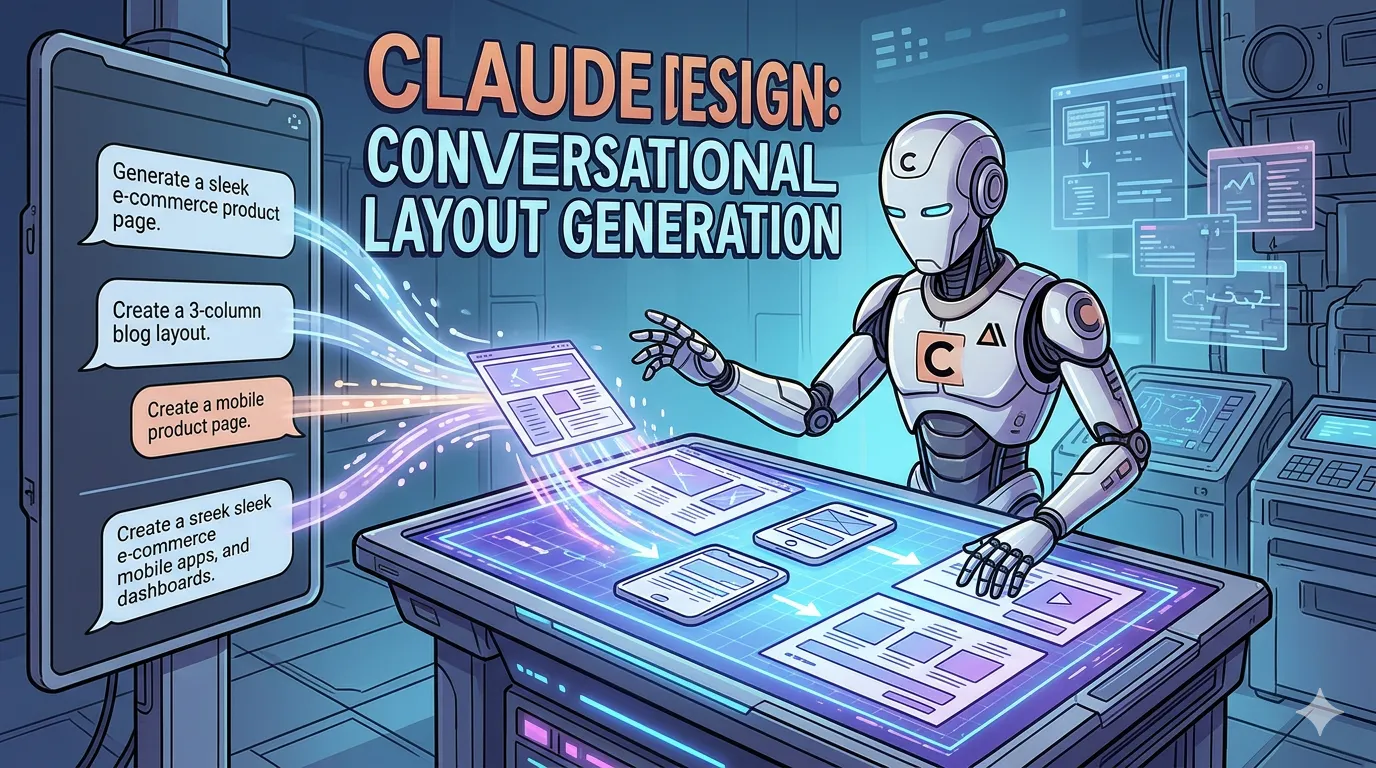
Claude Design: What It Is and What You Can Build
Claude Design by Anthropic lets you create polished visuals, slides, and prototypes through conversation. Here's how it works and what it's actually good for.
The Claude Code Source Code Leak: What We Learned From Anthropic’s Security Fiasco
The Claude Code source code leak exposed Anthropic’s AI secrets, hidden features, and development missteps. Here’s what the leak reveals about Claude Code and AI security.