
Five iOS onboarding screens in about ten minutes, three of them ignoring the design system I uploaded, and one with a washed-out logo that refused to fix itself after two retries. That's my honest scorecard from a weekend with the Claude Design AI tool. It runs on Opus 4.7, Anthropic's newest model, and sits in a weird middle space between a Figma replacement and a fast prototype factory.
What The Claude Design AI Tool Actually Does
The pitch is simple. You type a prompt like "iOS onboarding flow for a dating app," and it returns a canvas with five or six interactive screens. Buttons click. Sliders slide. Animations play. Each screen ships with exportable code.
A few features caught me off guard the first time I tried it:
- Direct drawing on the canvas. You sketch an arrow, circle a problem, add a comment, and prompt the fix inline.
- Video sequences up to a minute long. Not just button ripples, full product walkthroughs.
- Variation generation. Ask for ten loading spinners and you get ten legitimately different ones, not ten coats of paint on the same idea.
- Shader-based backgrounds. The tool writes real shader code for animated gradients that would take a competent web developer half a day.
The canvas model is the piece I keep coming back to. Instead of a chat window producing isolated screens one at a time, you get a spatial view of the whole flow. You can compare four screens side by side and see whether the button style drifted between them. That maps to how designers actually work, which is closer than what most AI UI design tool options give you right now.
Once you're on the canvas, iteration gets tighter. Draw an arrow at a broken element, type "fix the logo contrast," wait, reload. Sometimes it works on the first pass. Sometimes it changes the background color and calls it done.
Opus 4.7 Under The Hood
A few numbers worth knowing about the Opus 4.7 design features. The model now processes images at up to 3.75 megapixels, meaning a long edge of 2576 pixels. Big enough to read dense mockups without lossy downsampling, which matters if you're feeding it full-resolution Figma exports. On the software engineering benchmark it scored 87.6%, ahead of 4.6 but behind a rumored Mythos model that hasn't shipped publicly.
A vocal group of users insists 4.7 is actually a regression. There's a minor conspiracy going around that Anthropic quietly weakened 4.6 in the months before launch so the new model would feel smarter by comparison. I don't buy it, but the fact that it's being argued at all says something real about where we are. Every flagship launch now feels like a fractional improvement. The obvious generational leaps are behind us, for now.
One caveat: speed is not a strength here. Generating a five-screen flow took close to 10 minutes in my tests. Google Stitch, Codex, and Cursor Composer all move noticeably faster for comparable requests. You're trading wait time for output richness, which is a fair trade when the output is actually richer and a bad one when it isn't.
Uploading A Design System: Hit Or Miss
This is where the tool either becomes useful or frustrating. The design system upload supports three routes: link a GitHub repo, upload a Figma file directly, or drop a PDF with your tokens and components.
In theory, a designer does five flagship screens and the tool handles the next hundred. That's the dream case for anyone trying to move from Figma to working prototypes with AI handling the grunt work. In practice, I got uneven results. I uploaded a PDF defining our color palette, type scale, and button variants. Claude acknowledged the system in its chat output. The generated screens were vaguely consistent with it. The primary color was approximately right. Typography felt off. Button radii didn't match the spec and hover states invented their own rules.
When I've seen the workflow deliver, the input was a full Figma file with the component library already named and well-organized. That visibly helped. The tool could reach for named components and reuse them rather than approximating. The lesson is straightforward: the richer and more structured your upload, the closer the output. A PDF alone will not give you brand fidelity, and a dumped Figma file without proper component naming will fall back to Claude's house style, which is fine but not yours.
If you're evaluating this seriously, spend a day cleaning up your Figma library before you upload. That single step does more than any prompt engineering.
Claude Design vs Google Stitch
Google Stitch is the closest competitor, so the comparison matters. I've run similar tasks through both in the last few weeks.
Stitch is faster. Meaningfully faster. A basic UI in Stitch comes back in about two minutes. The same request in Claude runs closer to ten.
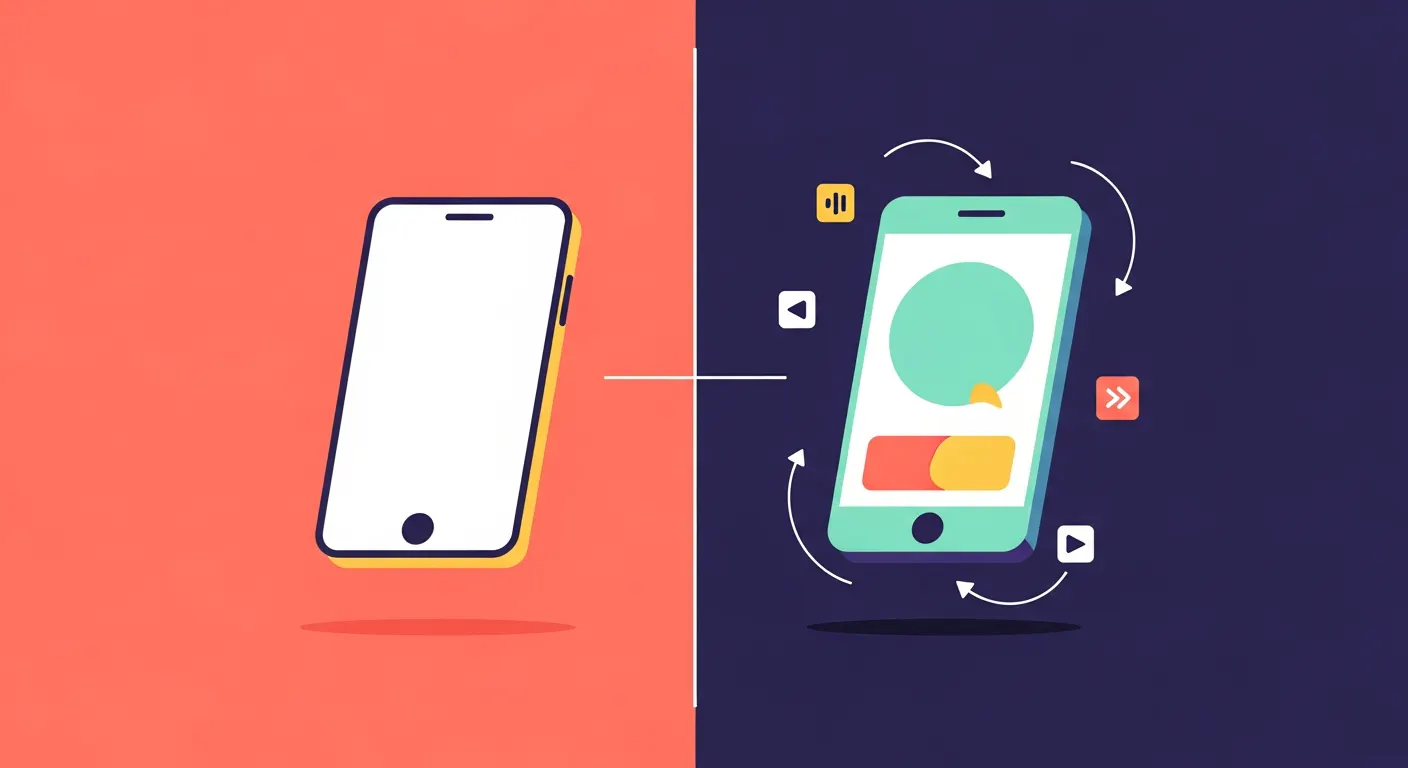
But Stitch outputs are static. The screens look clean. They're also frozen. Claude produces AI-generated interactive prototypes by default. Animations play in the preview. Components respond. You tweak a slider and see the result immediately. For anyone who has ever shown a client a flat prototype and watched them fail to imagine how it would actually feel in their hand, that alone is worth the slower generation.
Stitch's design system handling is still more reliable. If you need tight brand consistency right now, for a real deliverable, Stitch has the edge. Claude's canvas model, shader animations, video generation, and variation mode are the real differentiators.
Pick by what you're actually doing. Speed and brand fidelity lean Stitch. Interactivity, experimentation, and animation-heavy work lean Claude. Neither is strictly better. They're answering slightly different questions, and the honest answer to "which one should I use?" depends on whether your current bottleneck is time-to-mockup or time-to-feel.
When To Actually Use It
Where this workflow genuinely helps:
- Early-stage exploration. You have a rough concept, you want ten variations, you want them clickable within the hour.
- Pitch decks that show a product idea in motion without building the real thing.
- Onboarding flows for side projects where pixel-perfection doesn't matter and you need momentum.
- Proof of concept work where the only question is "does this interaction feel right?"
Where it falls apart:
- Production handoff when your design system is complex. It will drift, and you'll spend more time fixing drift than you saved.
- Accessibility-critical flows where you need to inspect and verify focus states, screen reader behavior, and contrast manually.
- Branded hero imagery. Logos rendered poorly in my tests and didn't recover after multiple retries.
- Teams that need a single source of truth. The canvas is great for exploration and weaker as a living design document.
The broader pattern across today's AI prototyping tools is that UI/UX automation is real, but it's strongest at structure and interaction and weakest at the decorative, brand-specific layers that require taste. A pragmatic workflow goes like this: generate rapid mockups in Claude, make decisions fast, then rebuild the final version in your actual design tool using your actual system. Treat the output as the cheapest way to kill bad ideas, not as the handoff artifact.
Final Take
Is this the end of Figma? No. Anthropic built a fast idea generator that happens to emit working code, and that's genuinely new. But the gap between "plausible interactive mockup" and "production UI that respects my brand" is still mostly manual work. I'd pay for it tomorrow to compress the messy early stages of exploration. I wouldn't fire my design team on the strength of it. For the model side of the story, Anthropic's research page is where to look for the less-marketed details.
Get CodeTips in your inbox
Free subscription for coding tutorials, best practices, and updates.
More from CodeTips

I Tested 4 AI Coding Tools Head-to-Head: Here's the Honest Winner
Most AI coding comparisons test "Hello World" apps and call it a day. I ran every major tool through the same three-stage gauntlet: a simple build, a complex full-stack application, and multiple rounds of revisions. The best AI for code should hold up under all three. Most do not.

Canva AI Logo Generator Review (2026): Free, Fast, and Better Than Paying $30
AI logo generators are everywhere right now. Everyone claims they can create a “professional brand identity” in minutes. I believed that too, until I actually started using them for real projects.